In this article
The single click that breaks your flow
Youʼve practiced your pitch a dozen times. The slides are perfect. You walk on stage, connect your laptop, and press F5. Your PowerPoint expands to fullscreen. The room goes quiet. And then—your brain stumbles: you forgot to start the timer.
Now you fumble for the clock app. You click Start while your first sentence hangs in the air. The audience notices. That tiny interruption costs you momentum. Presenters who rely on manual timers consistently report higher rates of overruns — not because they're careless, but because that one extra click gets lost in the adrenaline of going on stage.
FlyClock was built to eliminate that moment entirely.
Why manual PowerPoint timers fail
Let's examine the tools most presenters reach for — and why they undermine your performance:
- Stopwatch apps / phones: Require a tap to start. Often forgotten. Phone screens distract the audience.
- Built‑in PowerPoint timer (Rehearse Timings): Only works in edit mode, not during live presentation. Modifies your file.
- Cloud‑based timers (Stagetimer's web tier, CueTimer Cloud, etc.): Need you to click Start. Also require an internet connection and browser tab management.
- Desktop widgets (CountdownKings, etc.): Get buried behind fullscreen PowerPoint because they donʼt use low‑level rendering.
- PowerPoint plugins (UbiTimer): Embed code into the .pptx file — risky when switching computers, often broken by Office updates.
* Stagetimer and CueTimer also offer desktop editions. The above refers to their cloud/web tiers.
The common thread? They all require you to click Start separately from launching your slideshow. That split‑second distraction is exactly what FlyClock eliminates.
How FlyClock's Fullscreen Sense™ Technology works
FlyClock is not a PowerPoint plugin. It's a system‑level presentation‑sensing engine we call Fullscreen Sense™ Technology that monitors your screen state across Windows, macOS, and Linux.
Step‑by‑step: from F5 to automatic countdown
1. You open your PowerPoint file.
2. You press F5 (or Shift+F5 from current slide).
3. PowerPoint enters fullscreen mode — the OS broadcasts this state change.
4. FlyClock, running quietly in the system tray, detects the event instantly.
5. The floating timer appears on screen and begins counting down from your preset duration.
6. You present without interruption. When you press Esc to exit, FlyClock stops automatically.
Think of it this way: FlyClock asks your computer one question — "Are you in fullscreen mode right now?" The moment the answer changes to "Yes," the timer starts. No clicking. No hotkeys. Just one OS‑level question, asked silently in the background.
FlyClock in Action
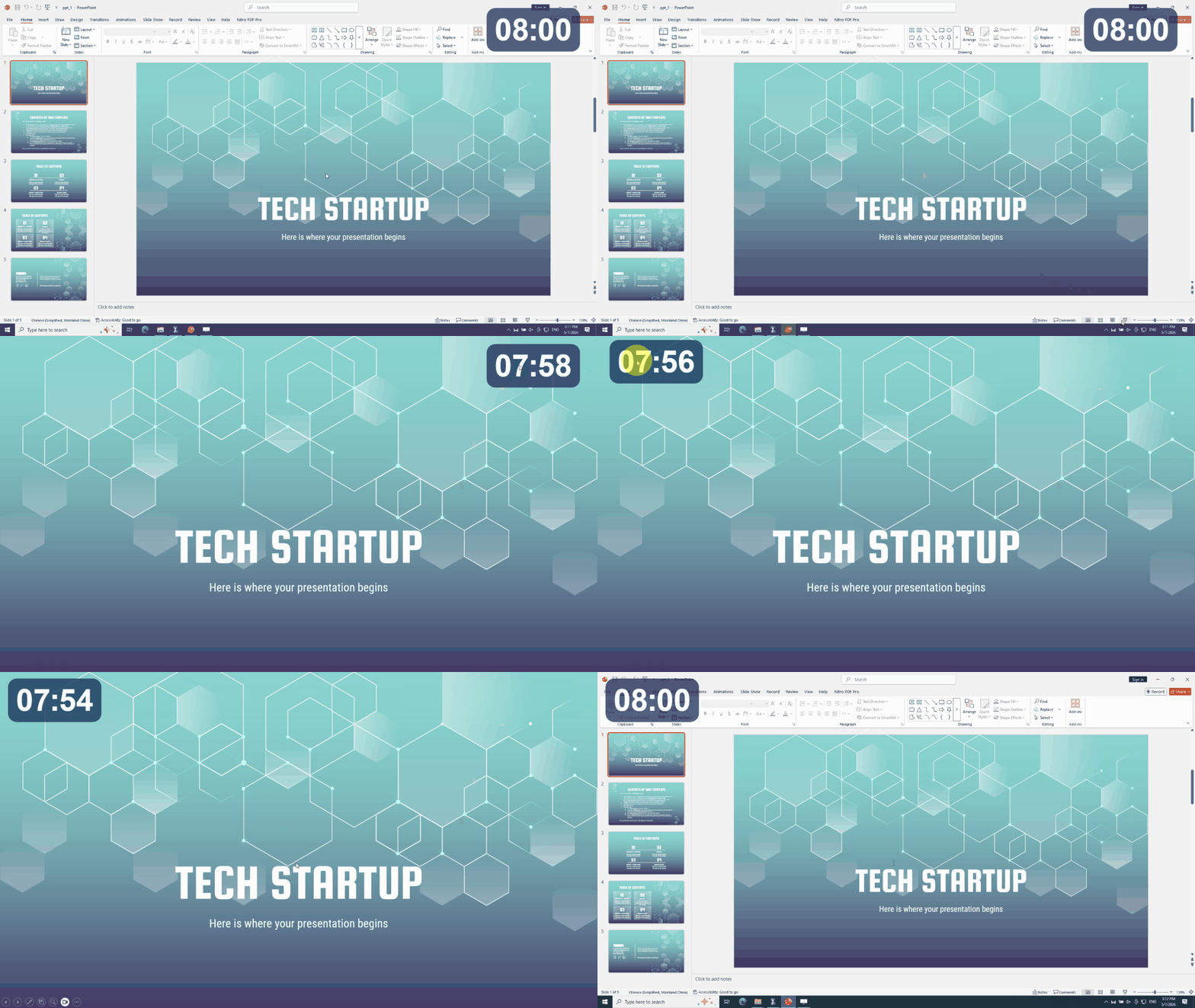
One step: press F5. FlyClock appears automatically — no clicks, no forgetting.
Why this is technically difficult
Detecting a fullscreen presentation reliably across different versions of PowerPoint, WPS, LibreOffice, and PDF viewers on three operating systems is deceptively complex. Competing tools either donʼt attempt it or rely on fragile plugin architectures. FlyClock's low‑level window hooking, combined with per‑application heuristics, gives it near‑100% accuracy.
Setting up FlyClock for PowerPoint
- 1Download & install FlyClockGrab the installer for Windows, macOS, or Linux from shinyware.site/download. The free trial never expires and includes full automatic start.
- 2Launch FlyClock — it hides in the system trayNo dashboard, no setup wizard. FlyClock sits quietly until a fullscreen presentation begins.
- 3Set your preferred duration and alertsRight‑click the FlyClock window → Settings. Enter your presentation limit (e.g., 15 minutes). Configure two optional warning points (e.g., “5 min left” and “time’s up”). Choose visual flash, sound, or both.
- 4Open PowerPoint and press F5Your slides go fullscreen. FlyClock appears automatically in the corner you last placed it. No extra click — the countdown has already started.
- 5Present with total focusThe timer stays pinned on top of PowerPoint, even on dual‑screen setups. Drag it anywhere. If you need a colleague to manage the clock, give them the QR code — they can pause or reset via phone on the same Wi‑Fi.
Advanced features for pros
- Per‑slide timing mode: The timer resets automatically each time you advance to a new slide. Ideal for structured Q&A or pitch competitions where each slide has a strict time limit.
- Two‑stage alerts: Set a “time remaining” warning (e.g., yellow flash at 2 min) and a final “stop” alert (red flash + optional audio).
- Remote control via LAN: A colleague scans a QR code and can pause, reset, or force‑exit your presentation — all without touching your laptop. No internet required.
- Session logging: Export a log of every presentation start/end time. Useful for practice tracking or billing in consulting.
- Zero file modification: FlyClock never touches your .pptx file. Safe for sensitive corporate or academic presentations.
Frequently Asked Questions: Automatic PowerPoint Timer
Does FlyClock work with all versions of PowerPoint?
Yes. FlyClock supports Microsoft PowerPoint (2016, 2019, 2021, Office 365), WPS Presentation, and LibreOffice Impress on Windows, macOS, and Linux. As long as the application can enter fullscreen mode, FlyClock will detect it.
What about Google Slides? Can it auto‑start there?
Yes. When you present Google Slides from a browser (Chrome, Edge, Firefox) and press F11 to enter fullscreen, FlyClock detects the fullscreen state and starts the timer. The same works for Keynote exported to PDF or any other fullscreen app.
Will the timer appear on the projector screen or only on my laptop?
FlyClock is designed for the presenter’s screen. By default, it floats on the primary display (your laptop). You can drag it to a secondary monitor if you wish, or keep it private. The audience sees only your slides.
Can I use FlyClock without installing anything on a borrowed computer?
FlyClock offers a portable version (Windows) that runs from a USB stick without installation. For macOS and Linux, a standard installation is required, but the free trial makes it easy to use on any machine you own.
How much does the Professional license cost?
$27.99 one‑time payment — no subscription, no recurring fees. The free trial never expires and includes all core timing features, including automatic start. Remote control is limited to 15 minutes per session in the free version; the Professional license removes that limit.
all core timing features, no expiration. Remote control included for 15 min per session in the free version.
Upgrade once at $27.99 to own it for life. Download FlyClock